
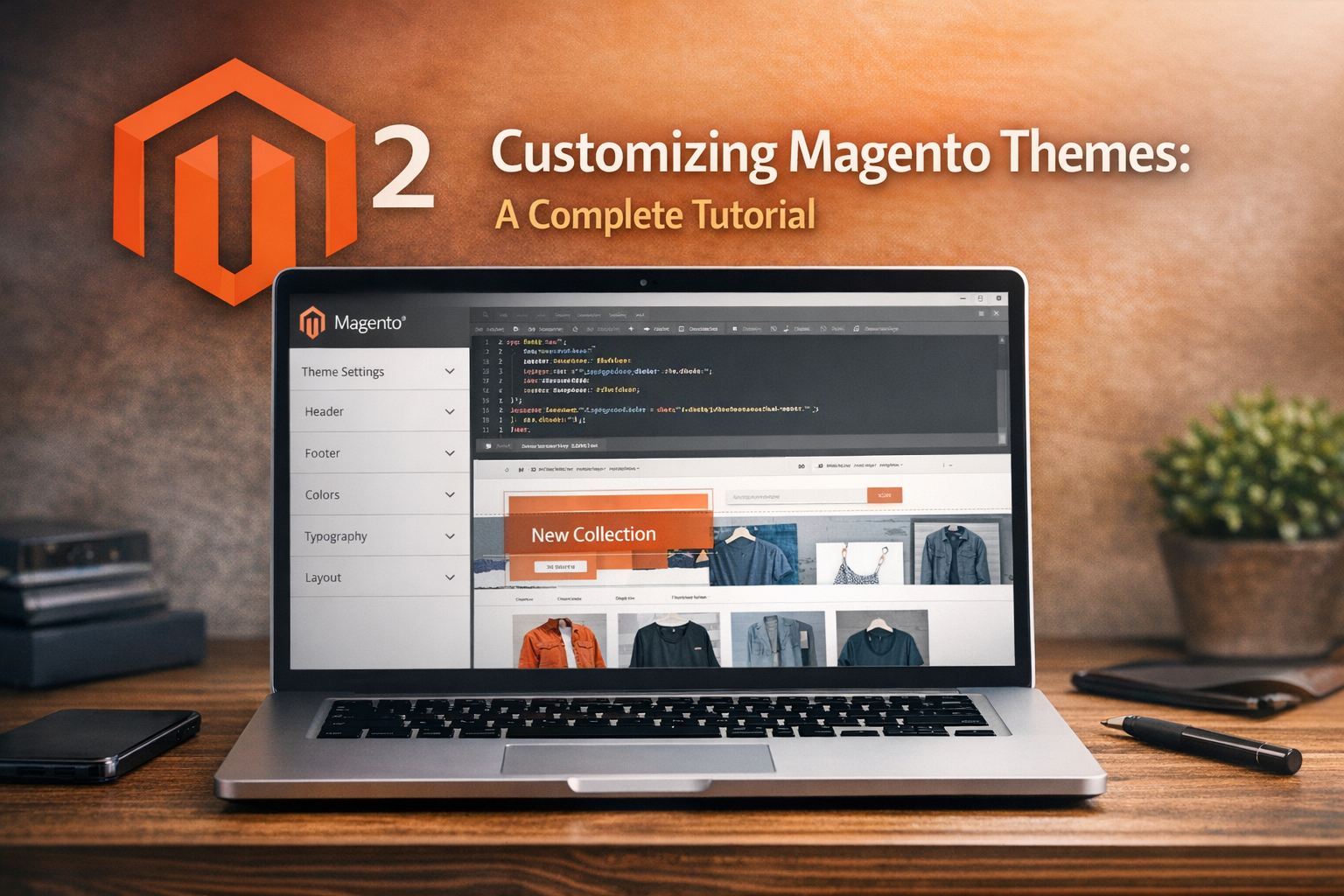
Understanding Magento Themes
Before diving into customization, it’s important to understand what Magento themes are and how they function within the Magento ecosystem.
- Theme Structure: Magento themes consist of layout XML files, templates (PHTML), CSS/LESS styles, JavaScript, and media assets.
- Inheritance: Magento supports theme inheritance, allowing you to build a child theme that extends a parent theme, making upgrades easier and safer.
- Scope: Themes control the visual design of storefronts but do not affect backend functionality.
Step 1: Setting Up Your Development Environment
Before customizing a theme, ensure your Magento development environment is ready.
- Magento Installation: Install Magento 2 on your local machine or development server.
- Enable Developer Mode: Use the command
bin/magento deploy:mode:set developerfor faster development and to see real-time changes. - Install Required Tools: Use a code editor (like VS Code or PHPStorm), and set up Git for version control.
Step 2: Creating a Child Theme
To safely customize a theme without affecting the core or parent theme files, create a child theme.
- Create Directory Structure:
app/design/frontend/<Vendor>/<themename>
For example:
app/design/frontend/Custom/mytheme - Create
theme.xmlFile:
Add the following content to define your theme and its parent:<?xml version="1.0" encoding="UTF-8"?> <theme xmlns:xsi="http://www.w3.org/2001/XMLSchema-instance" xsi:noNamespaceSchemaLocation="urn:magento:framework:Config/etc/theme.xsd"> <title>My Custom Theme</title> <parent>Magento/luma</parent> </theme> - Create
registration.phpFile:
This file registers your theme with Magento.<?php use Magento\Framework\Component\ComponentRegistrar; ComponentRegistrar::register( ComponentRegistrar::THEME, 'frontend/Custom/mytheme', __DIR__ ); - Add
etc/view.xmlFile: Optional but recommended for customizing image sizes and other view-related configurations.
Step 3: Overriding and Customizing Templates
Magento’s frontend is built using PHTML templates and layout XML files. To customize the look and feel, you can override these files in your child theme.
- Locate the Template: Find the template you want to customize in the parent theme or module directory, usually under
vendor/magento/module-*/view/frontend/templatesorvendor/magento/theme-frontend-*/. - Copy to Your Theme: Replicate the folder structure in your child theme under
app/design/frontend/Custom/mytheme/Magento_Module/templates/ortemplates/. - Edit the Template: Modify the PHTML file as needed to change the HTML structure or add new elements.
- Flush Cache: After changes, run
bin/magento cache:flushto see updates.
Step 4: Customizing Styles and Layout
CSS and layout XML files control the visual presentation of your Magento store.
- Adding Custom Styles:
– Create aweb/css/sourcedirectory inside your theme folder.
– Add a_extend.lessfile to override or add new styles.
– Magento uses LESS by default, but you can also add plain CSS files and include them in layout files. - Modifying Layout XML:
– Layout files are found inapp/design/frontend/Custom/mytheme/Magento_Theme/layout/.
– Copy and customize XML files such asdefault.xmlorcatalog_product_view.xmlto change page structure, add or remove blocks, or reposition elements. - Deploy Static Content:
Runbin/magento setup:static-content:deploy -fto compile LESS and deploy CSS/JS files.
Step 5: Adding Custom JavaScript
To enhance the front-end experience, you might want to add custom JavaScript.
- Create JS Directory: Inside your theme, create
web/jsfolder. - Add Your Scripts: Create JavaScript files like
custom.jshere. - Include JS in Layout: Add your script reference to layout XML, for example in
default.xml:<page xmlns:xsi="http://www.w3.org/2001/XMLSchema-instance" xsi:noNamespaceSchemaLocation="urn:magento:framework:View/Layout/etc/page_configuration.xsd"> <head> <script src="js/custom.js"/> </head> </page> - Use RequireJS: Magento uses RequireJS for JavaScript modules; follow Magento’s best practices for defining and loading JS modules.
Step 6: Testing and Deploying Your Theme
Once customization is done, thorough testing and deployment are crucial.
- Switch Theme in Admin Panel: Navigate to Content > Design > Configuration and set your custom theme for the desired store views.
- Test Responsiveness: Verify your theme looks good on mobile, tablet, and desktop.
- Cross-Browser Testing: Check compatibility with major browsers like Chrome, Firefox, Safari, and Edge.
- Performance Optimization: Minify CSS/JS, enable caching, and use production mode in live environments.
Frequently Asked Questions (FAQ)
Q1: Can I customize Magento themes without coding?
Yes, Magento provides some built-in theme customization options via the Admin panel, such as changing colors and fonts. However, deeper customizations require coding.
Q2: Is it safe to modify the default Luma theme directly?
No. It is highly recommended to create a child theme that inherits from the Luma theme to ensure your changes are preserved during Magento updates.
Q3: How do I restore the default theme if something goes wrong?
You can switch back to the default Magento theme via the Admin panel under Content > Design > Configuration. Also, keep backups of your custom theme files.
Q4: Do I need to clear cache after every theme change?
Yes. Magento caches layout, templates, and static files, so clearing cache is necessary to see your changes reflected.
Q5: Can I use third-party themes and customize them?
Absolutely. You can create child themes extending third-party themes or customize them directly if permitted by the license.
Conclusion
Customizing Magento themes is a powerful way to tailor your online store’s appearance and user experience. By understanding Magento’s theme architecture, setting up a proper development environment, and following best practices like creating child themes and overriding templates and styles, you can build a unique, high-performing storefront. Always remember to back up your work, test thoroughly, and deploy carefully to ensure a smooth experience for your customers. With these steps, you’re well on your way to mastering Magento theme customization.




Leave A Comment