
What is Magento Multi-Store Setup?
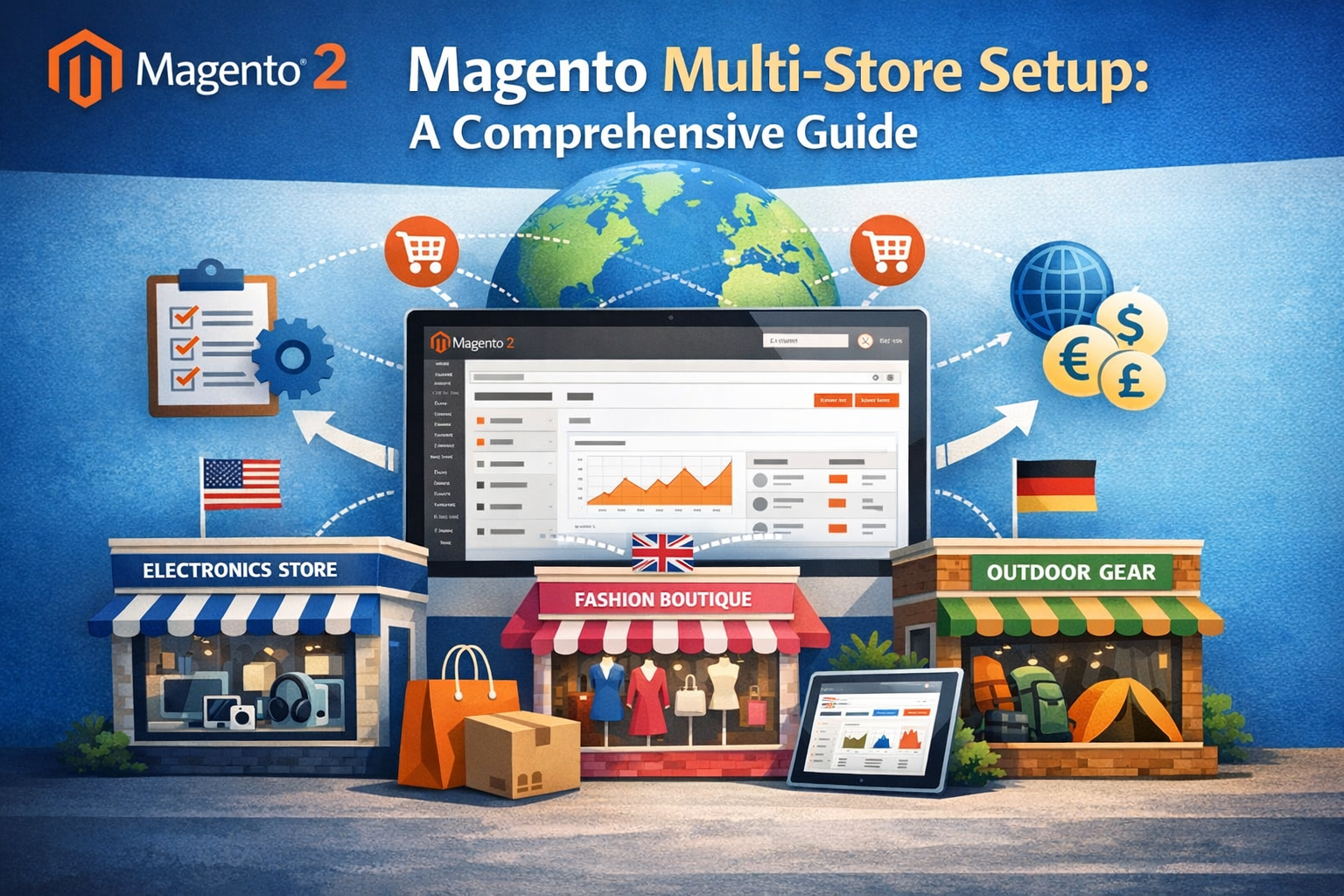
Magento Multi-Store setup enables you to create and manage multiple stores, websites, or store views under one Magento installation. This offers a seamless way to expand your online business, target different markets, or create unique brand experiences without needing separate installations.
Benefits of Using Magento Multi-Store
- Centralized Management: Manage products, orders, and customers from a single admin panel.
- Cost Efficiency: Save on hosting and maintenance by running multiple stores on one platform.
- Brand Customization: Tailor each store’s design, pricing, and product offerings.
- Localized Shopping Experience: Create stores for different regions with specific languages, currencies, and tax rules.
- Streamlined Inventory: Share or segregate product catalogs depending on store requirements.
Magento Multi-Store Components Explained
Before diving into the setup, it’s important to understand the Magento multi-store hierarchy:
- Global: The highest level that applies settings globally across all websites and stores.
- Website: A collection of stores that can share customers and shopping carts but have separate domains and catalogs.
- Store: Represents a unique product catalog and can be linked to multiple store views.
- Store View: Usually used for language or currency variations, offering different ways to view the same store.
Step-by-Step Guide to Setting Up Magento Multi-Store
Step 1: Prepare Your Magento Installation
Ensure you have a fully functional Magento installation with administrative access.
Step 2: Create a New Website
- Log in to the Magento Admin Panel.
- Navigate to Stores > Settings > All Stores.
- Click on Create Website.
- Enter a Name for the website (e.g., “Store B Website”).
- Set a unique Code (e.g., “store_b”).
- Save your changes.
Step 3: Create a Store Under the Website
- Within All Stores, click Create Store.
- Select the Website you just created.
- Give the store a Name (e.g., “Store B Store”).
- Choose the Root Category for this store (you can create a new category or use an existing one).
- Save the store.
Step 4: Create a Store View
- In All Stores, click Create Store View.
- Assign it to the Store you created.
- Name the store view (e.g., “Store B English”).
- Set the Status to Enabled.
- Assign a unique Code (e.g., “store_b_en”).
- Save the store view.
Step 5: Configure Base URLs for Your New Website
- Go to Stores > Configuration > General > Web.
- From the Store View dropdown on the top-left, select the website or store view you created.
- Expand the Base URLs section.
- Enter the new base URL (e.g.,
https://storeb.example.com/). - Repeat for Base URLs (Secure) with HTTPS URL.
- Save the configuration.
Step 6: Configure Your Web Server
Update your web server (Apache/Nginx) settings to point your new domain or subdomain to the Magento root directory. Ensure that the new domain is properly configured with DNS and SSL certificates.
Step 7: Set Up Product Catalogs and Pricing
- Create different root categories for each store to segregate product catalogs.
- Assign products to appropriate categories.
- Configure pricing, tax rules, and shipping methods as needed per website or store.
Step 8: Customize Design and Themes
- Navigate to Content > Design > Configuration.
- Select the store view for which you want to customize the theme.
- Assign a different theme or modify design settings.
- Save the changes.
Best Practices for Managing Magento Multi-Stores
- Consistent Branding: Maintain some consistent brand elements across stores to reinforce identity.
- Segregate Catalogs Carefully: Use root categories to avoid product overlap unless intentional.
- Test Before Going Live: Test URLs, checkout processes, and configurations thoroughly.
- Monitor Performance: Multi-store setups can increase server load; optimize hosting accordingly.
- Use Extensions Wisely: Some third-party modules may not support multi-store environments well.
Common Challenges and How to Solve Them
Challenge 1: Incorrect Base URL Configuration
Ensure you configure base URLs correctly per store view or website. Double-check for trailing slashes and HTTPS settings.
Challenge 2: Cache and Indexing Issues
After changes, always flush cache and reindex data via System > Cache Management and command line tools.
Challenge 3: Theme and Extension Compatibility
Verify that your theme and extensions support multi-store setups. Test in staging environments before production.
FAQ: Magento Multi-Store Setup
Q1: Can I use different domains for each Magento store?
Yes, Magento multi-store supports different domains or subdomains for each website or store by configuring your web server and Magento’s base URLs accordingly.
Q2: Can I share customers across multiple stores?
Customers can be shared within the same website but are isolated between different websites. Plan your setup accordingly depending on your customer strategy.
Q3: Is it possible to have different currencies per store view?
Yes, Magento allows configuration of different currencies per store view to cater to localized markets.
Q4: How do I manage inventory across multiple stores?
Magento’s default inventory management is global, but you can use third-party extensions or Magento’s MSI (Multi-Source Inventory) for advanced stock management.
Q5: Does multi-store affect SEO?
Proper multi-store SEO requires unique content, metadata, and sitemaps per store. Magento allows you to customize SEO settings per store view.
Conclusion
Setting up a Magento multi-store environment can greatly expand your eCommerce capabilities by enabling you to manage multiple brands, regions, or customer segments from a single platform. By understanding the Magento store hierarchy, following the step-by-step setup process, and adhering to best practices, you can create a flexible, scalable, and cost-efficient multi-store system tailored to your business needs. Always remember to thoroughly test configurations and monitor performance to ensure a smooth shopping experience for your customers across all store fronts.



Leave A Comment