
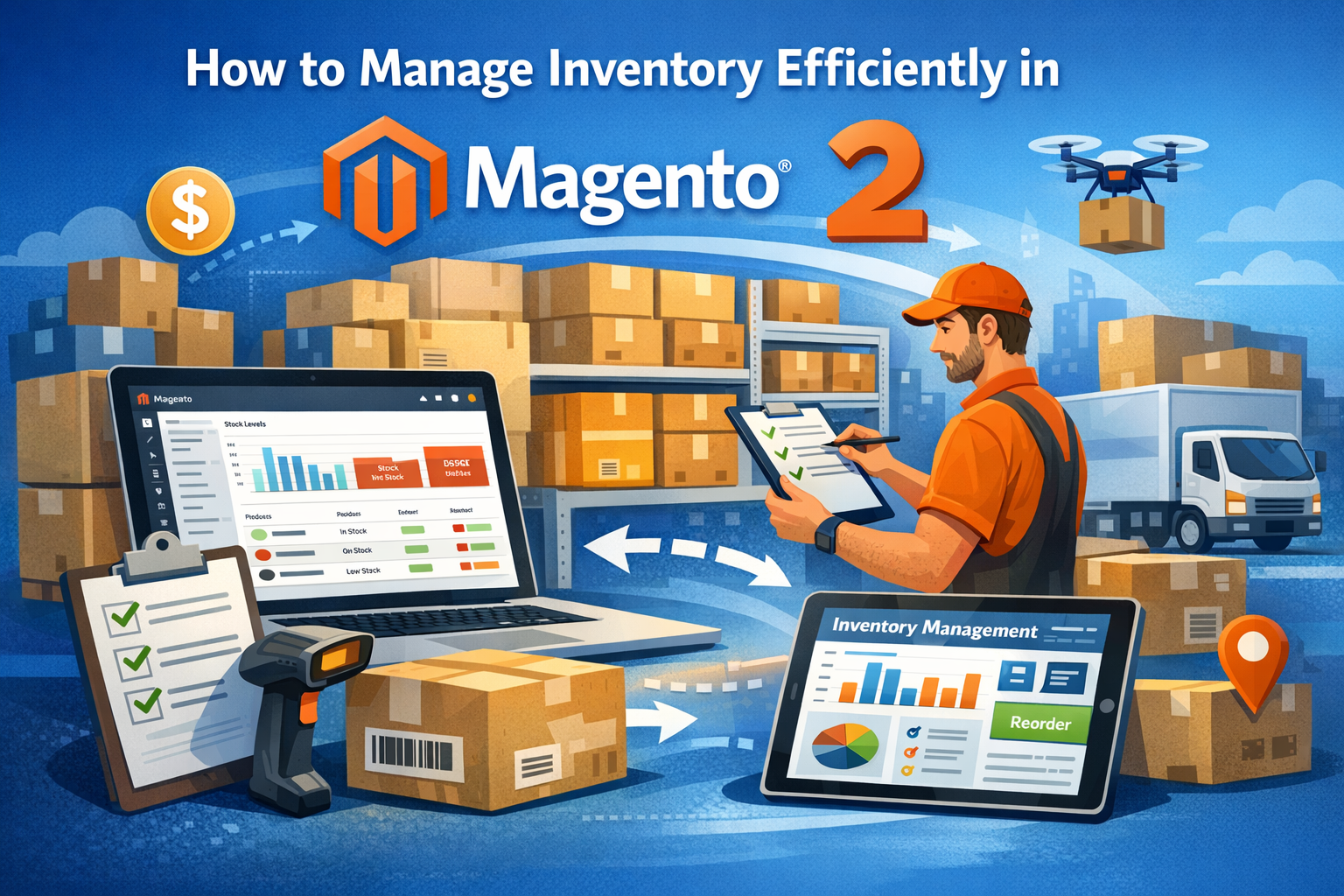
Understanding Magento Inventory Management
Magento’s inventory management system, especially with the introduction of Magento 2 and its Multi-Source Inventory (MSI) feature, provides flexibility to manage stock across multiple locations and sales channels. Before diving into management tips, it’s essential to understand the core components:
- Products: Magento supports simple, configurable, bundled, and virtual products, each with specific inventory settings.
- Stock Sources: MSI allows you to define different physical locations or warehouses where stock is stored.
- Reservations: Magento handles inventory reservations to avoid overselling when orders are placed but not yet shipped.
- Stock Status: Products can be marked as “In Stock” or “Out of Stock,” impacting their visibility in your store.
Step 1: Set Up Multi-Source Inventory (MSI)
Magento’s MSI feature lets you manage inventory from multiple warehouses or sources, helping you fulfill orders more efficiently and reduce shipping times.
- Enable MSI Module: MSI is enabled by default in Magento 2.3 and later. Verify it’s active in your store.
- Create Stock Sources: Navigate to Stores > Inventory > Sources and add your warehouses or supply locations.
- Assign Products to Sources: For each product, define the quantity available at each source.
- Create Stocks: Under Stores > Inventory > Stocks, group sources into stocks that connect to sales channels.
By properly setting up MSI, you can track inventory levels per location and optimize order fulfillment.
Step 2: Optimize Product Stock Settings
Proper product stock configuration ensures accurate inventory tracking and prevents overselling or stockouts.
- Manage Stock: Enable the “Manage Stock” option under Catalog > Products > [Product Edit] > Advanced Inventory to track inventory for individual products.
- Set Stock Quantity: Update stock quantity regularly to reflect actual inventory.
- Backorders: Configure whether customers can place orders for out-of-stock products and how backorders are handled.
- Notify for Low Stock: Set low stock thresholds and enable email notifications to timely replenish inventory.
Step 3: Automate Inventory Updates
Manual inventory updates can lead to errors and delays. Automate your inventory management to save time and improve accuracy.
- Use Import/Export Tools: Magento supports CSV import/export for bulk updates. Schedule regular imports to sync inventory from suppliers or warehouses.
- Integrate with ERP or WMS: Connect Magento with Enterprise Resource Planning (ERP) or Warehouse Management Systems (WMS) for real-time synchronization.
- Use APIs: Leverage Magento’s REST or GraphQL APIs to programmatically update inventory from external systems.
Step 4: Monitor Inventory with Reports and Dashboards
Tracking inventory performance helps identify trends, avoid stockouts, and make informed purchasing decisions.
- Inventory Reports: Use Magento’s built-in reports under Reports > Products to view stock levels, sales, and low inventory.
- Custom Dashboards: Implement custom dashboards or third-party extensions for real-time inventory insights.
- SKU Analysis: Regularly review SKU performance to determine which products need restocking or discontinuation.
Step 5: Implement Efficient Order Fulfillment and Shipping
Inventory management doesn’t stop at stock levels; efficient order processing and shipping affect overall inventory accuracy.
- Assign Orders to Sources: Use MSI to route orders to the nearest or most stocked warehouse for faster delivery.
- Track Shipments: Ensure shipment status updates reduce reserved inventory only when orders are shipped.
- Return Management: Manage returned products properly to update inventory and avoid discrepancies.
Step 6: Leverage Magento Extensions for Advanced Inventory Features
Magento’s marketplace offers many extensions that can enhance inventory management capabilities.
- Inventory Forecasting Tools: Predict demand and automate reorder points.
- Barcode and Scanning Solutions: Speed up warehouse operations and reduce errors.
- Advanced Reporting Plugins: Gain deeper insights into inventory trends and performance.
Frequently Asked Questions (FAQ)
Q1: Can I manage inventory for multiple warehouses in Magento?
Yes, Magento’s Multi-Source Inventory (MSI) lets you manage stock across multiple warehouses or sources, enabling efficient order fulfillment from various locations.
Q2: How do I prevent overselling in Magento?
Enable “Manage Stock” for each product, configure reservation settings properly, and keep inventory quantities up to date. Magento’s reservation system helps avoid overselling by temporarily reducing stock when orders are placed.
Q3: Is it possible to automate inventory updates with Magento?
Absolutely. You can automate inventory updates using CSV imports, integrations with ERP/WMS systems, or by leveraging Magento’s APIs for real-time synchronization.
Q4: What happens if I allow backorders in Magento?
Allowing backorders lets customers purchase products even when stock is zero or negative. This can help maintain sales, but it requires careful handling to avoid fulfillment issues.
Q5: How can I receive alerts for low stock products?
Magento allows you to set low stock thresholds and configure email notifications so that you or your purchasing team get timely alerts to replenish stock.
Conclusion
Efficient inventory management in Magento is essential for maintaining product availability, improving customer satisfaction, and optimizing operational costs. By leveraging Magento’s Multi-Source Inventory, optimizing product stock settings, automating updates, and utilizing analytics and extensions, you can build a streamlined inventory process that scales with your business. Regular monitoring and continuous improvement will ensure your Magento store remains agile and competitive in today’s dynamic eCommerce environment.




Leave A Comment